公安大数据应用实验报告
[TOC]
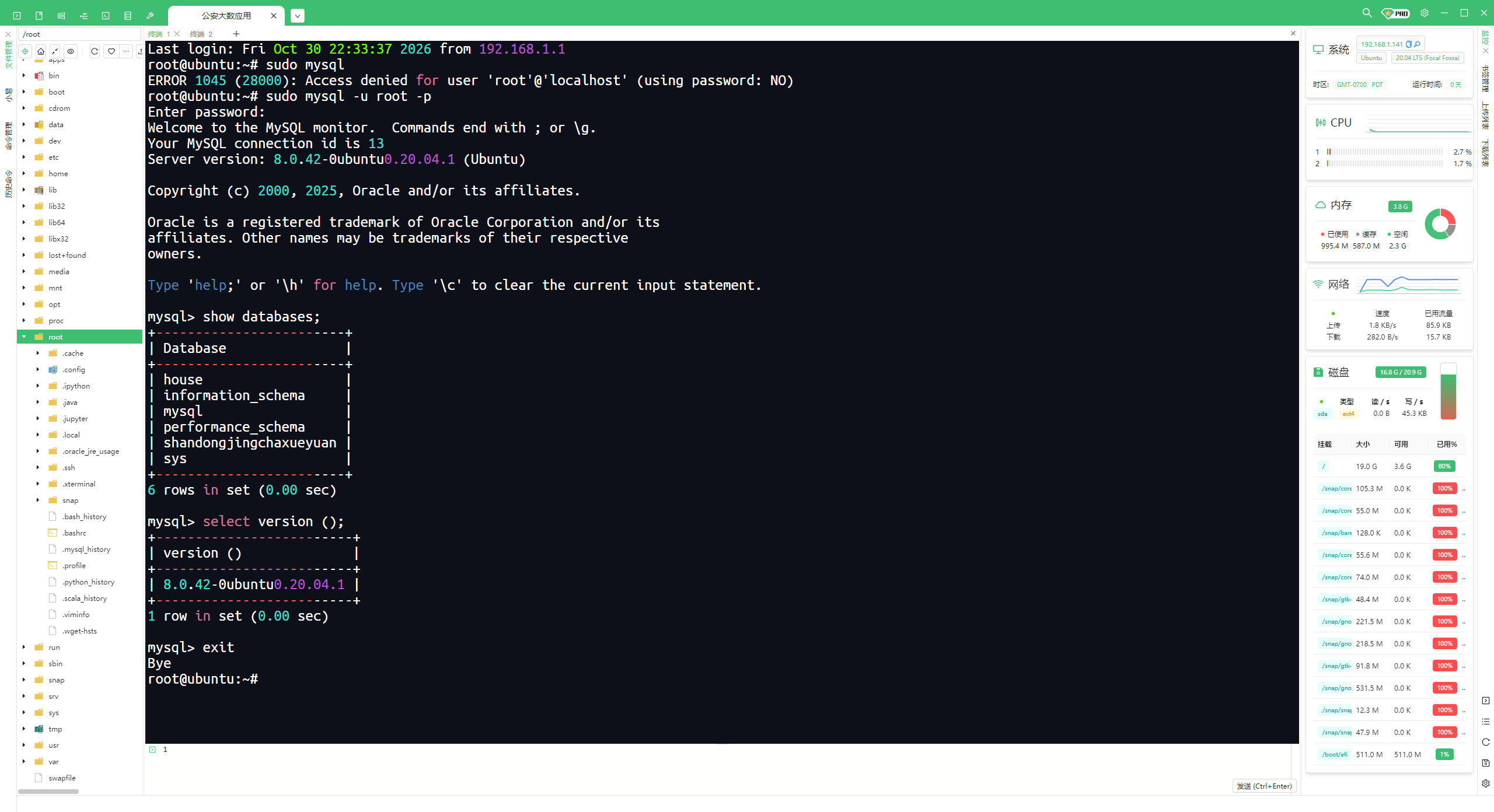
1.1 Mysql数据库安装
1.2Hadoop伪分布式安装
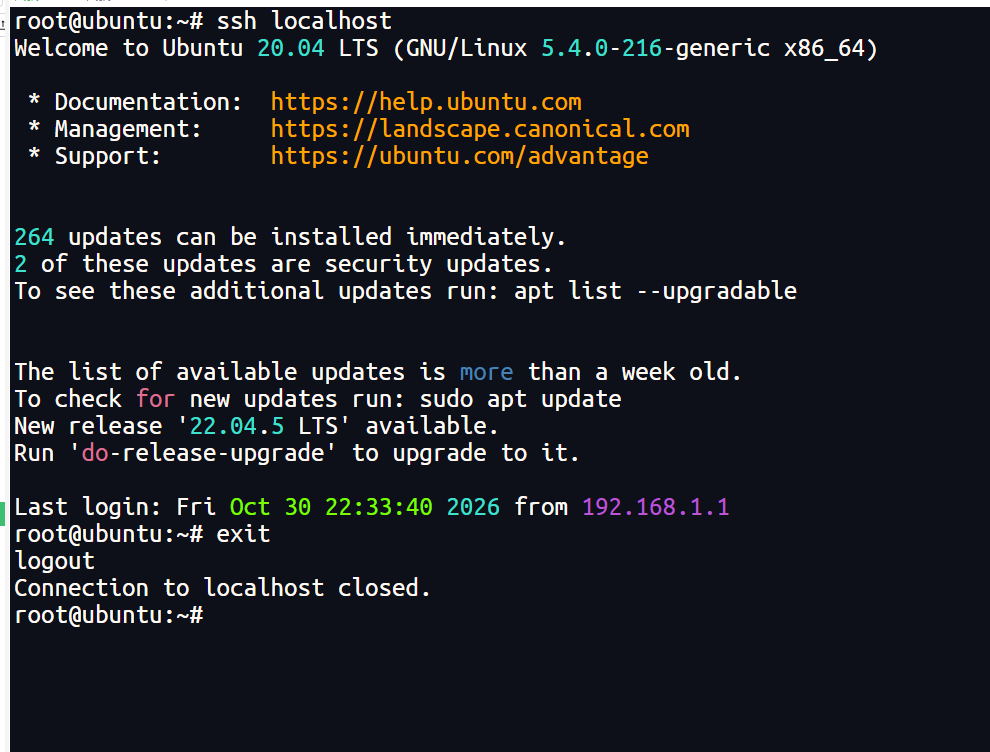
ssh连接测试
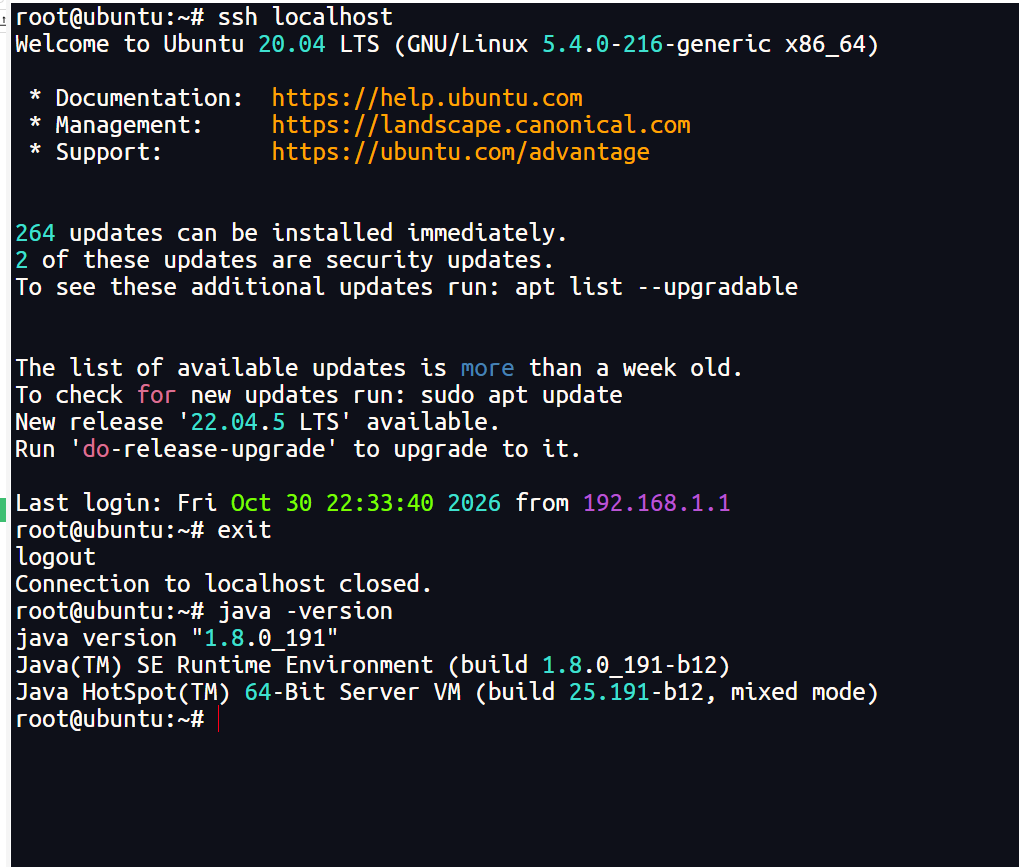
java环境变量配置
Hadoop环境变量

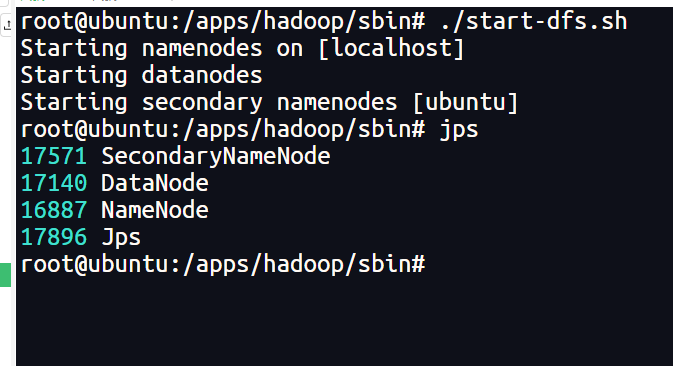
启动Hadoop的HDFS相关进程
启动yarn
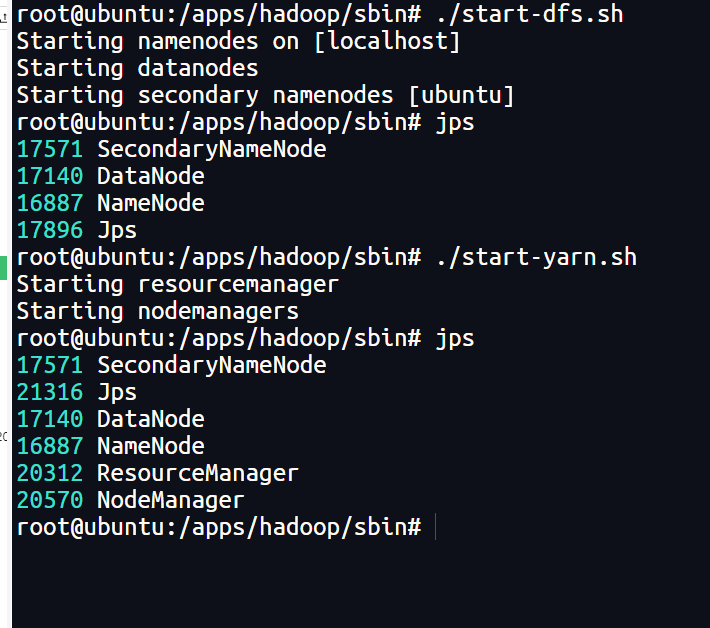
计算ip

1.3 Spark Standalone伪分布模式安装
配置环境变量
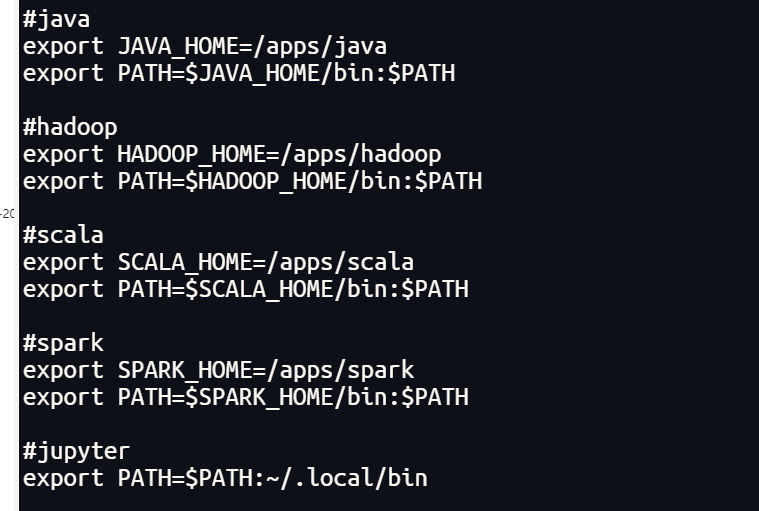
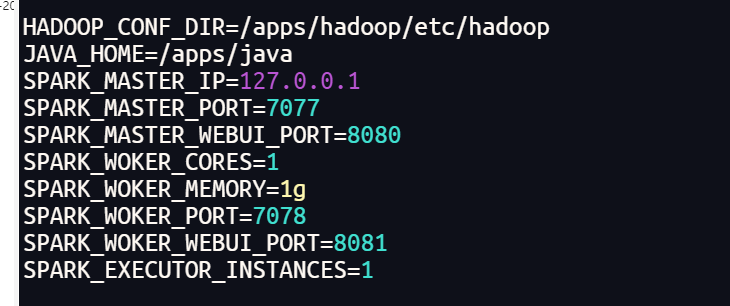
添加配置
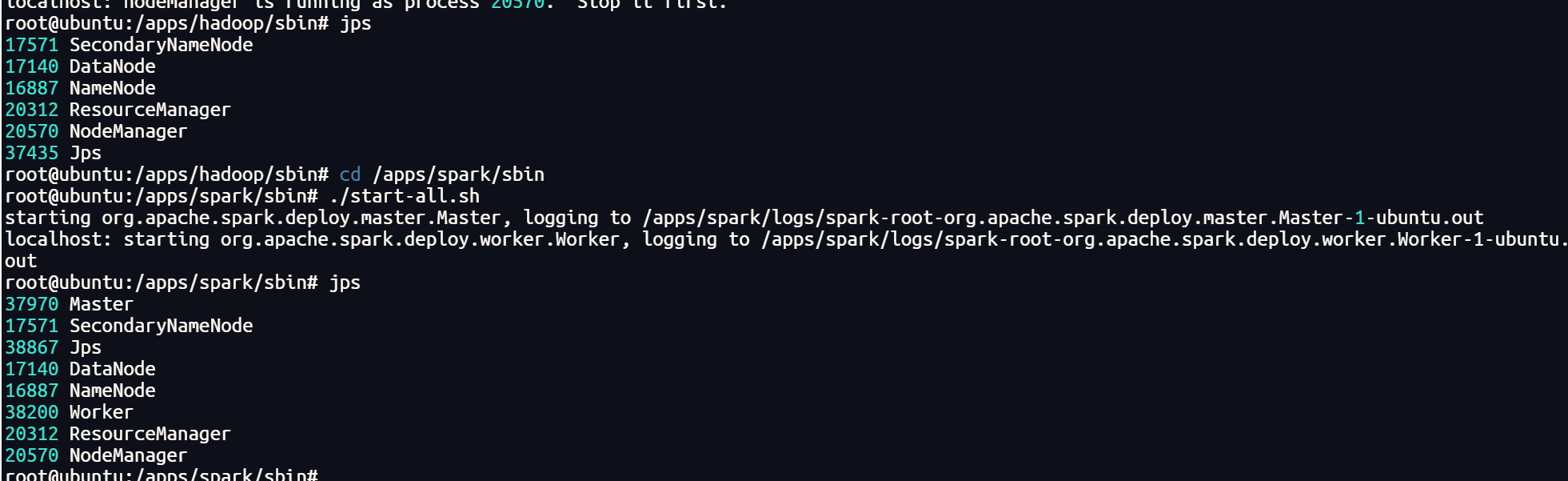
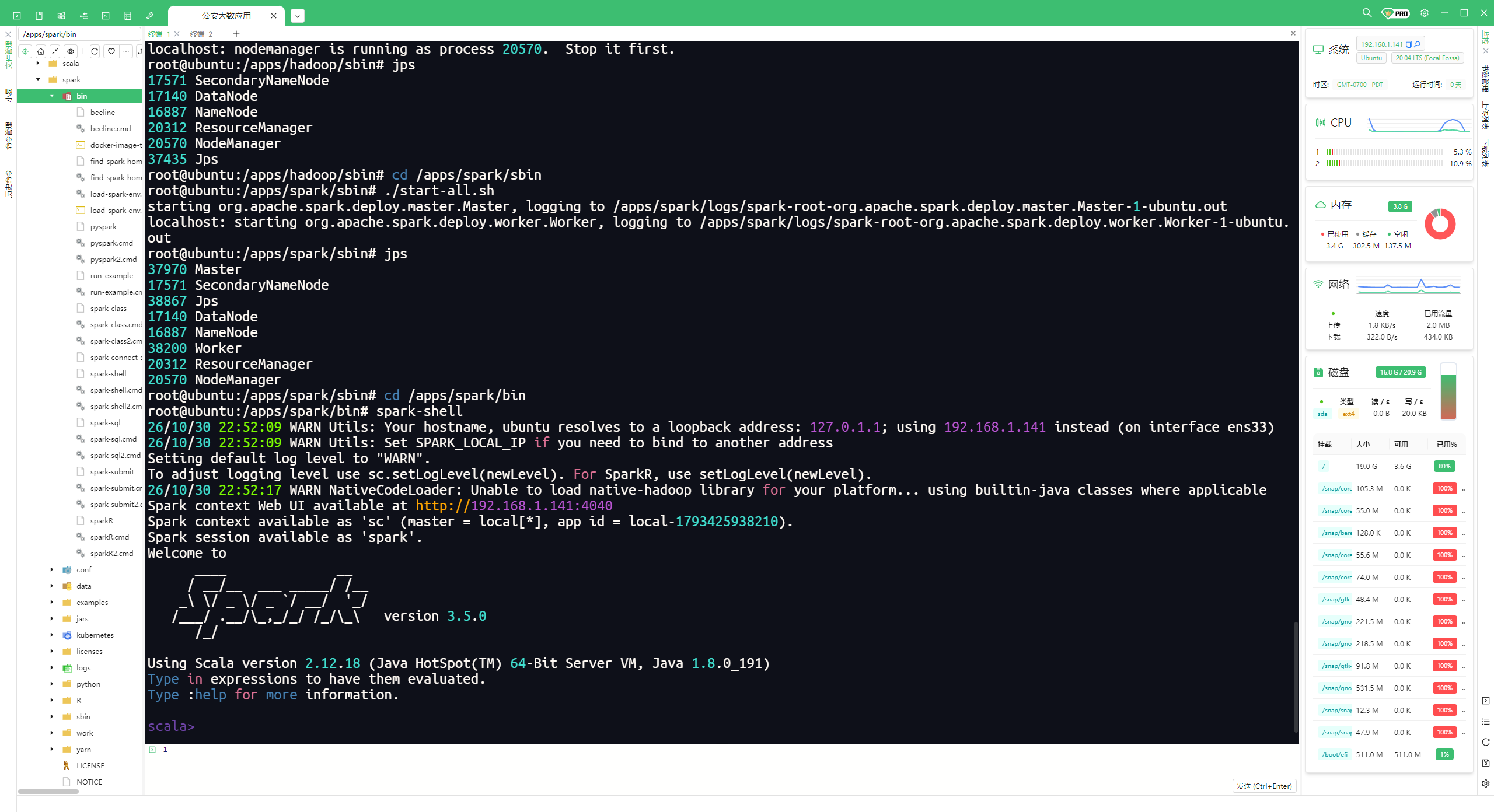
启动spark
进入spark命令行模式

1.4 PySpark安装
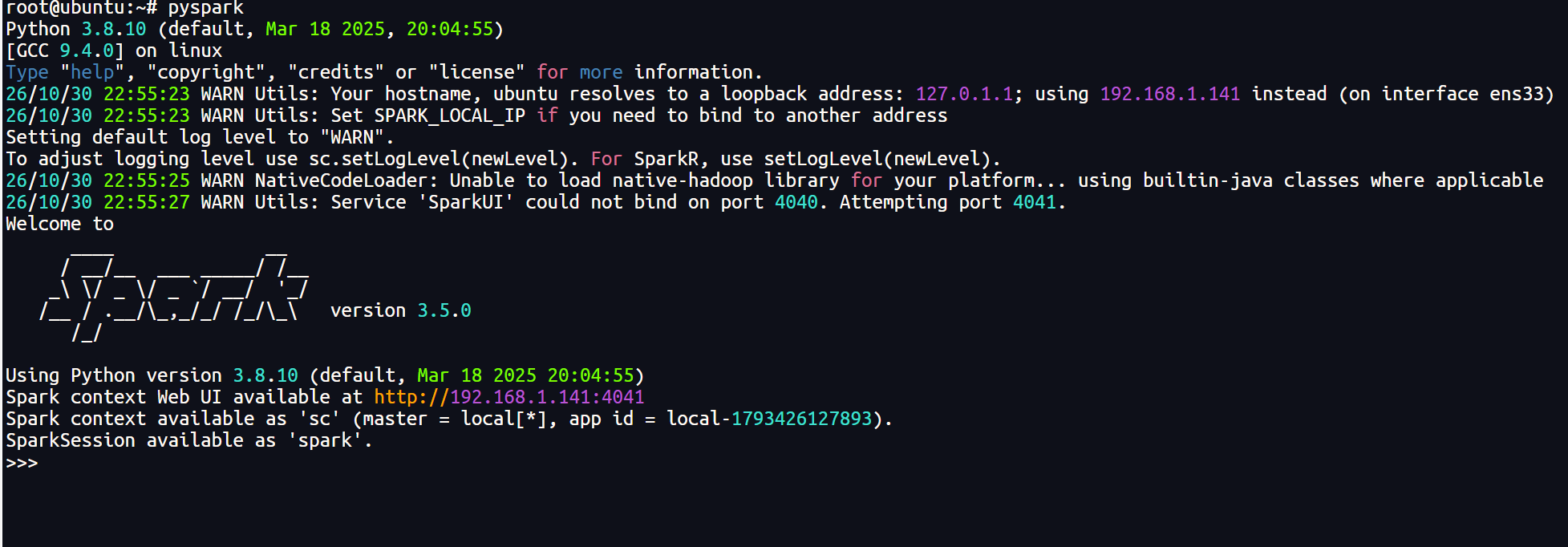
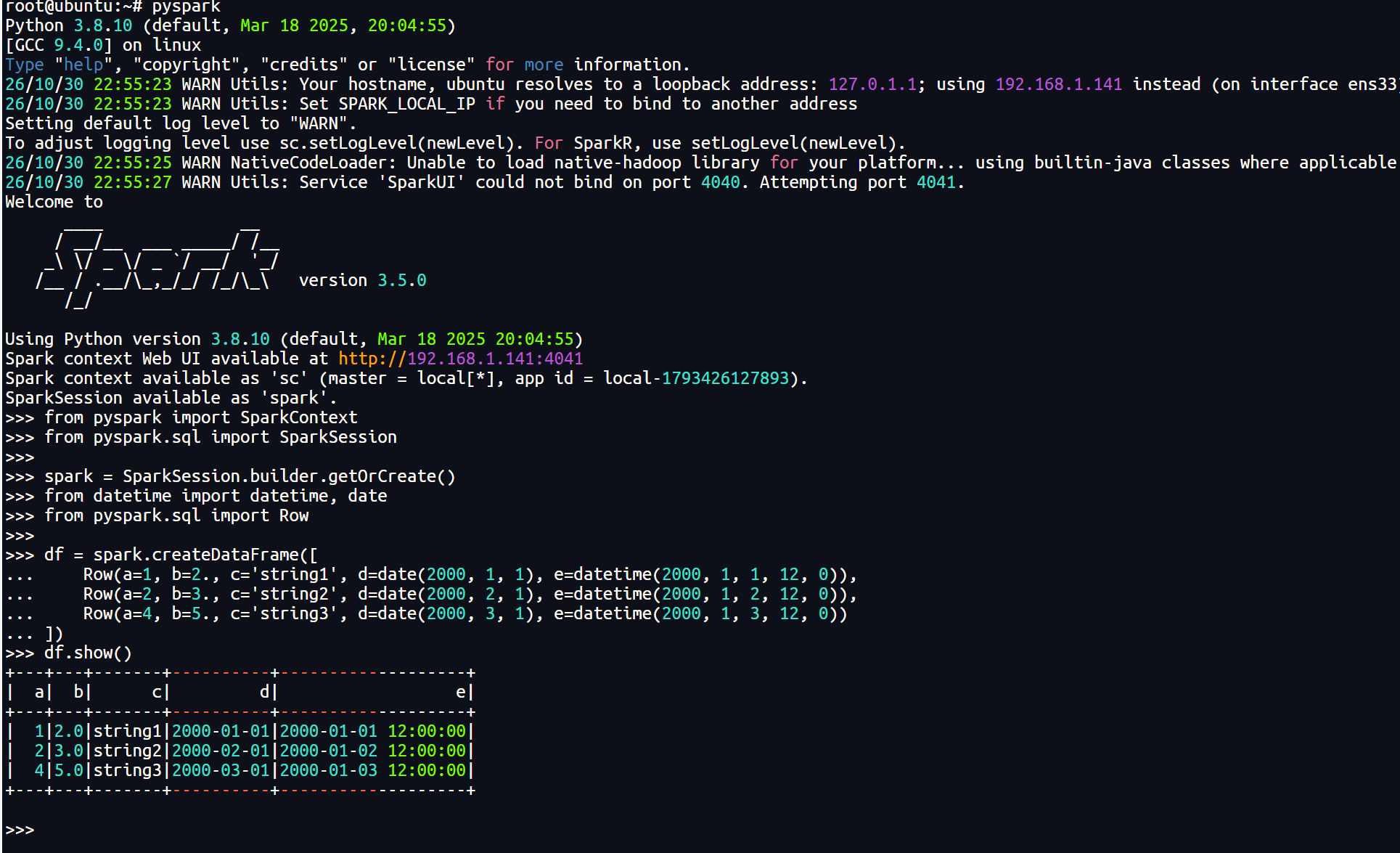
启动pyspark
1.5 python库安装
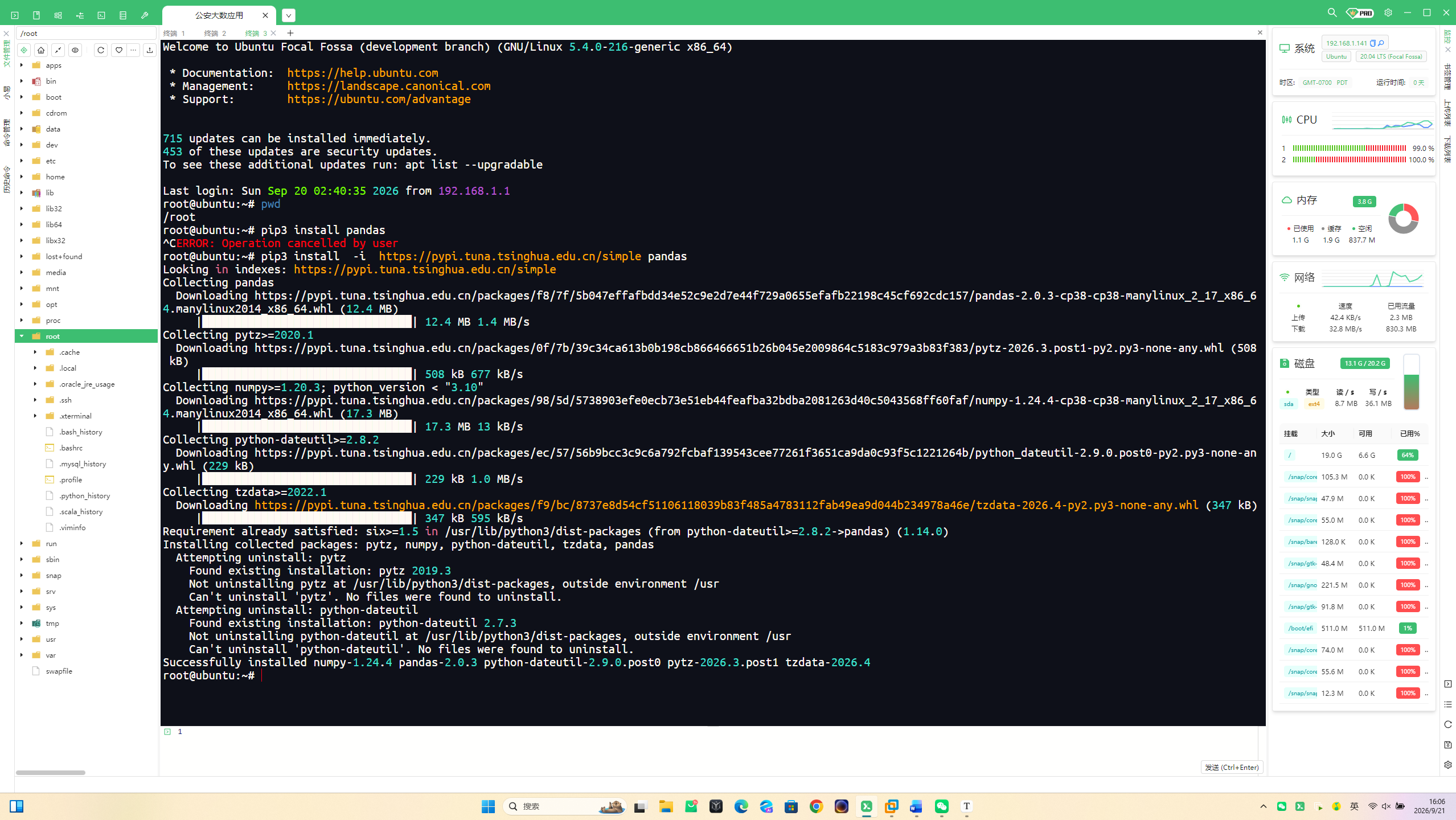
安装pandas
1 | pip3 install -i https://pypi.tuna.tsinghua.edu.cn/simple pandas |
安装numpy
1 | pip3 install -i https://pypi.tuna.tsinghua.edu.cn/simple Numpy |

安装 NumPy 的命令执行成功了,但系统里已经安装过,不需要重复安装。
安装Matplotlib
1 | pip3 install -i https://pypi.tuna.tsinghua.edu.cn/simple Matplotlib |
安装PyEcharts
1 | pip3 install -i https://pypi.tuna.tsinghua.edu.cn/simple pyecharts |
安装scikit-learn
1 | pip3 install -i https://pypi.tuna.tsinghua.edu.cn/simple scikit-learn |
安装jieba
1 | pip3 install -i https://pypi.tuna.tsinghua.edu.cn/simple jieba |
安装wordcloud
1 | pip3 install -i https://pypi.tuna.tsinghua.edu.cn/simple wordcloud |
安装xgboost
1 | pip3 install -i https://pypi.tuna.tsinghua.edu.cn/simple xgboost |
安装flask
1 | pip3 install -i https://pypi.tuna.tsinghua.edu.cn/simple flask |
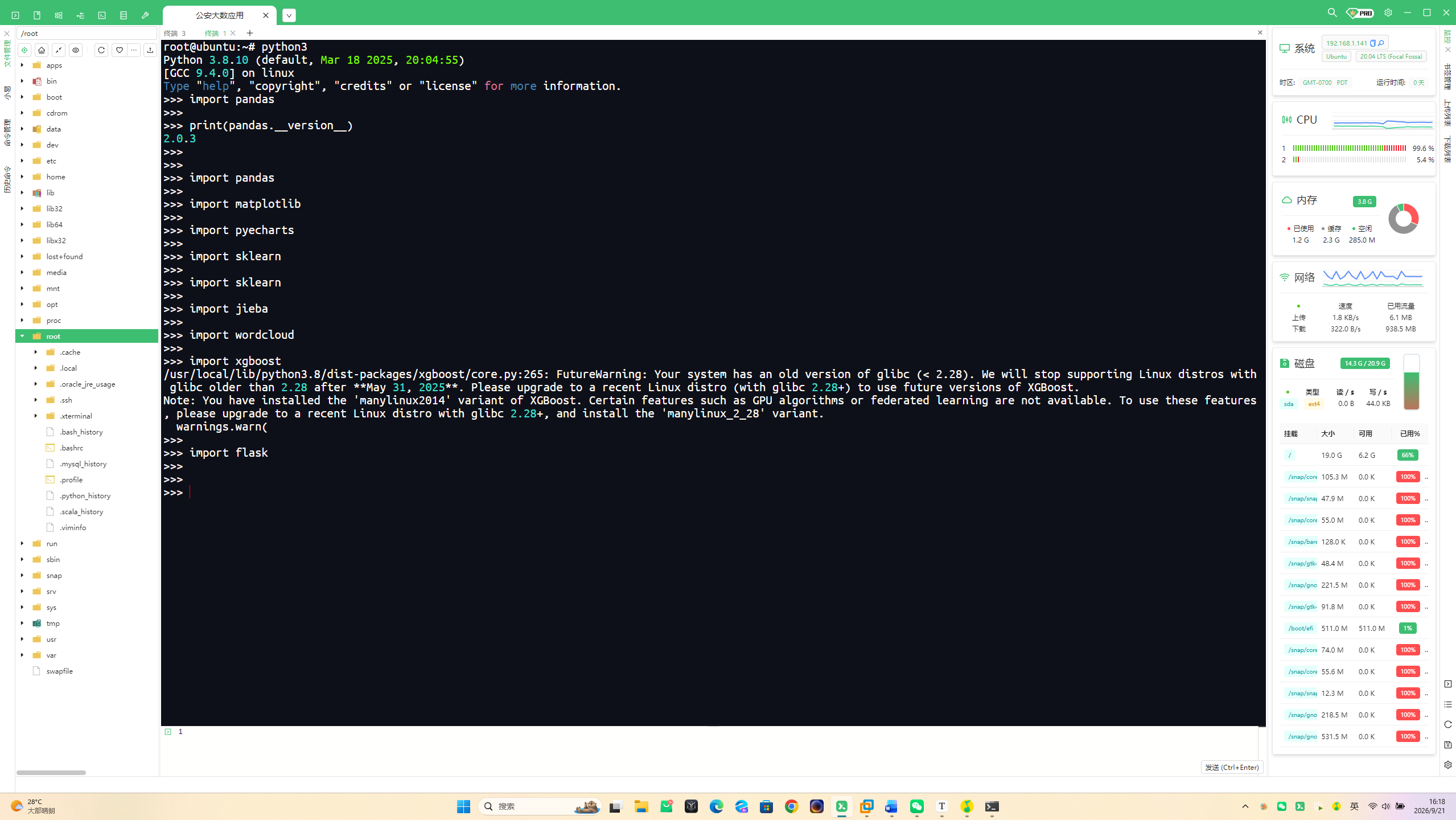
你看到的是 FutureWarning(未来警告),不是错误,主要说明:
当前系统的 glibc 版本低于 2.28;
你安装的是兼容旧系统的 manylinux2014 版本;
当前版本可以正常使用,但未来版本可能不再支持该系统;
GPU 算法、联邦学习等部分功能不可用。
1.6 pythoncharm开发工具安装测试
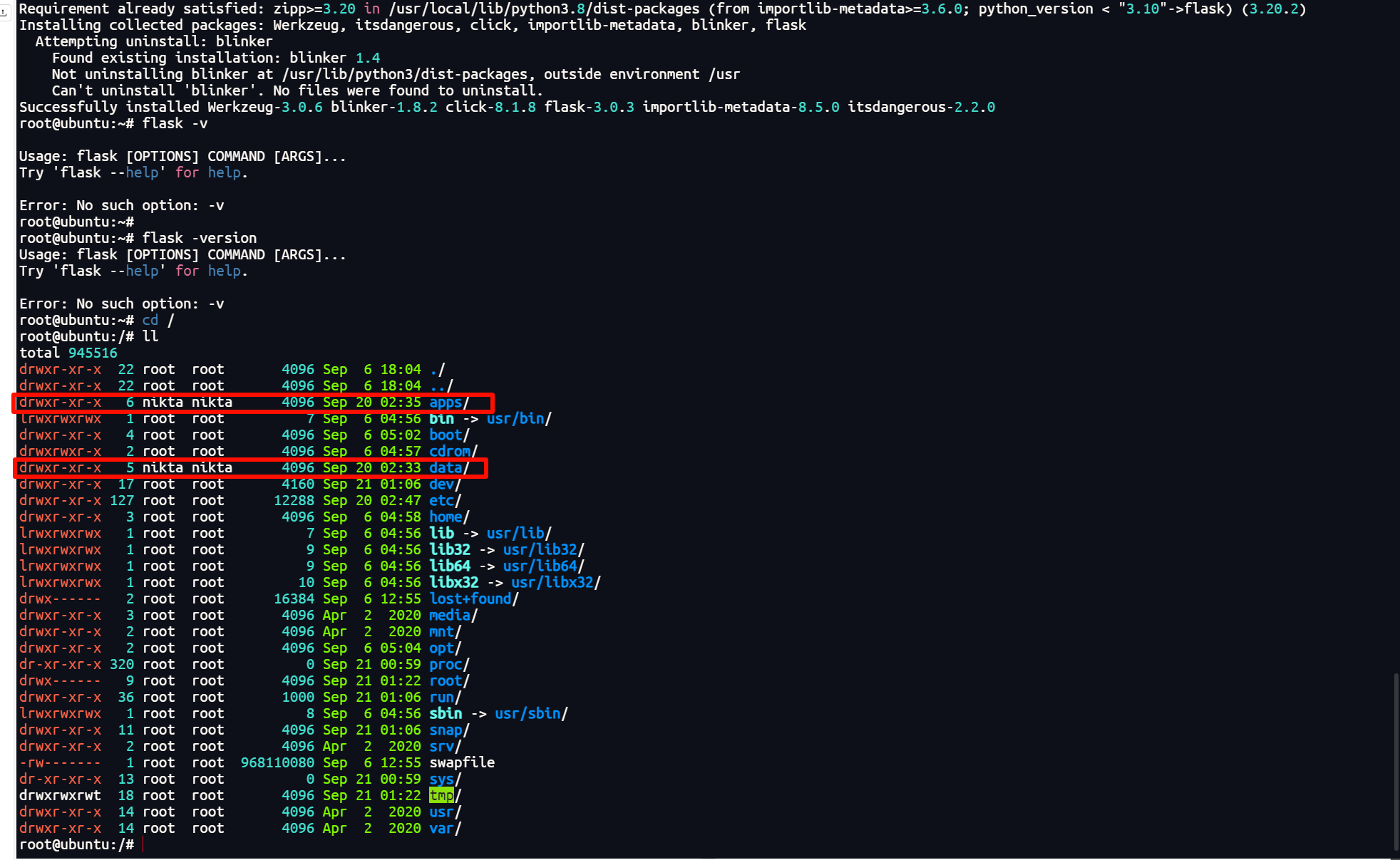
安装pycharm安装包
1 | wget https://download.jetbrains.com/python/pycharm-community-2023.3.5.tar.gz |
解压
1 | tar -xzvf /data/pycharm-community-2023.3.5.tar.gz -C /apps |

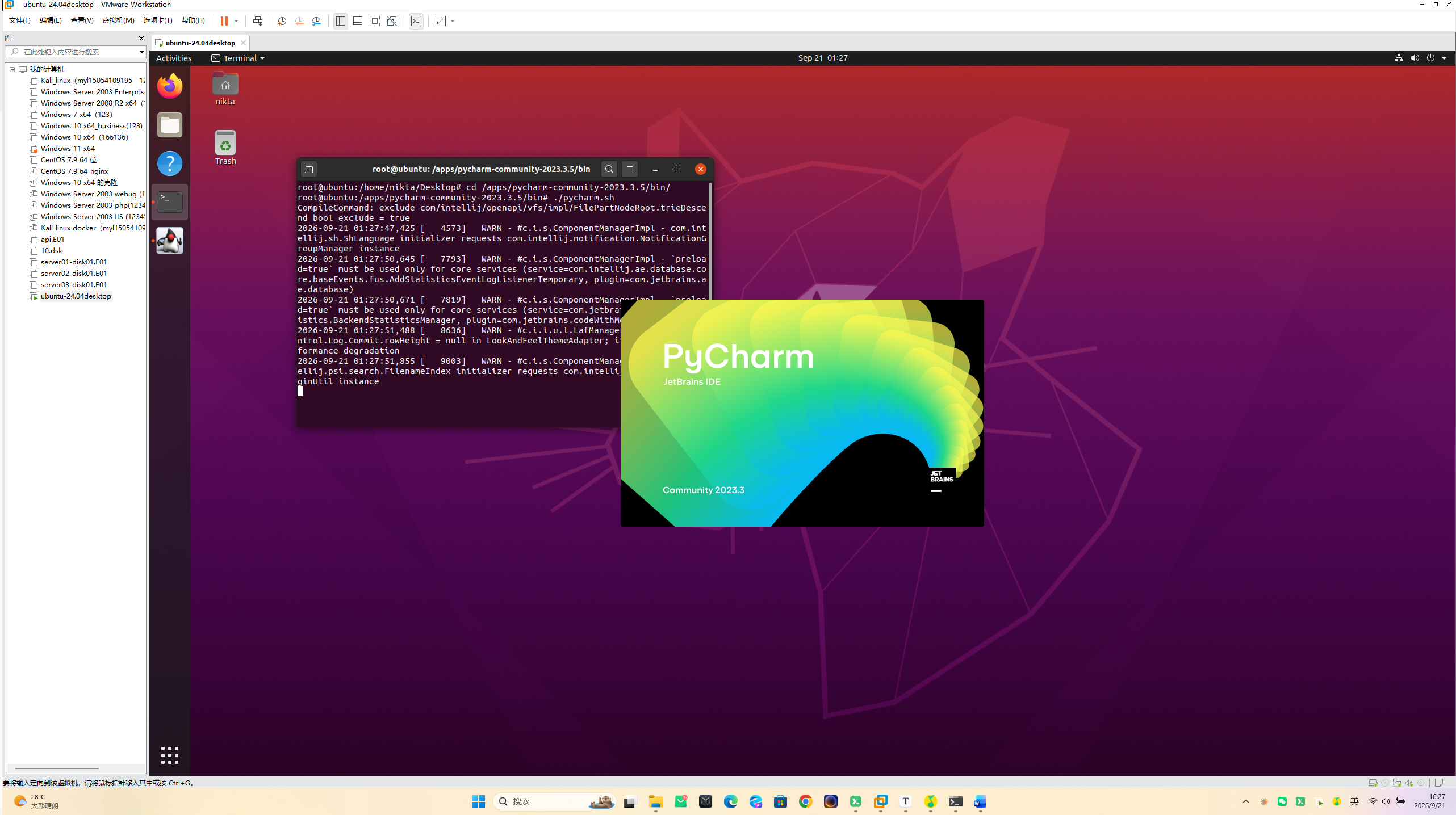
启动桌面版pychcharm
1 | cd /apps/pycharm-community-2023.3.5/bin/ |
pycharm汉化
通过插件市场安装
- 打开PyCharm:启动PyCharm应用程序。
- 进入设置:点击菜单栏中的
File,然后选择*Settings(在Mac上为Preferences*)。 - 打开插件市场:在设置界面的左侧导航栏中,展开*
Plugins选项,然后点击Marketplace*。 - 搜索中文语言包:在搜索框中输入*
Chinese (Simplified) Language Pack,找到后点击Install*进行安装。 - 重启PyCharm:安装完成后,系统会提示重启PyCharm,点击*
Restart IDE*按钮即可。
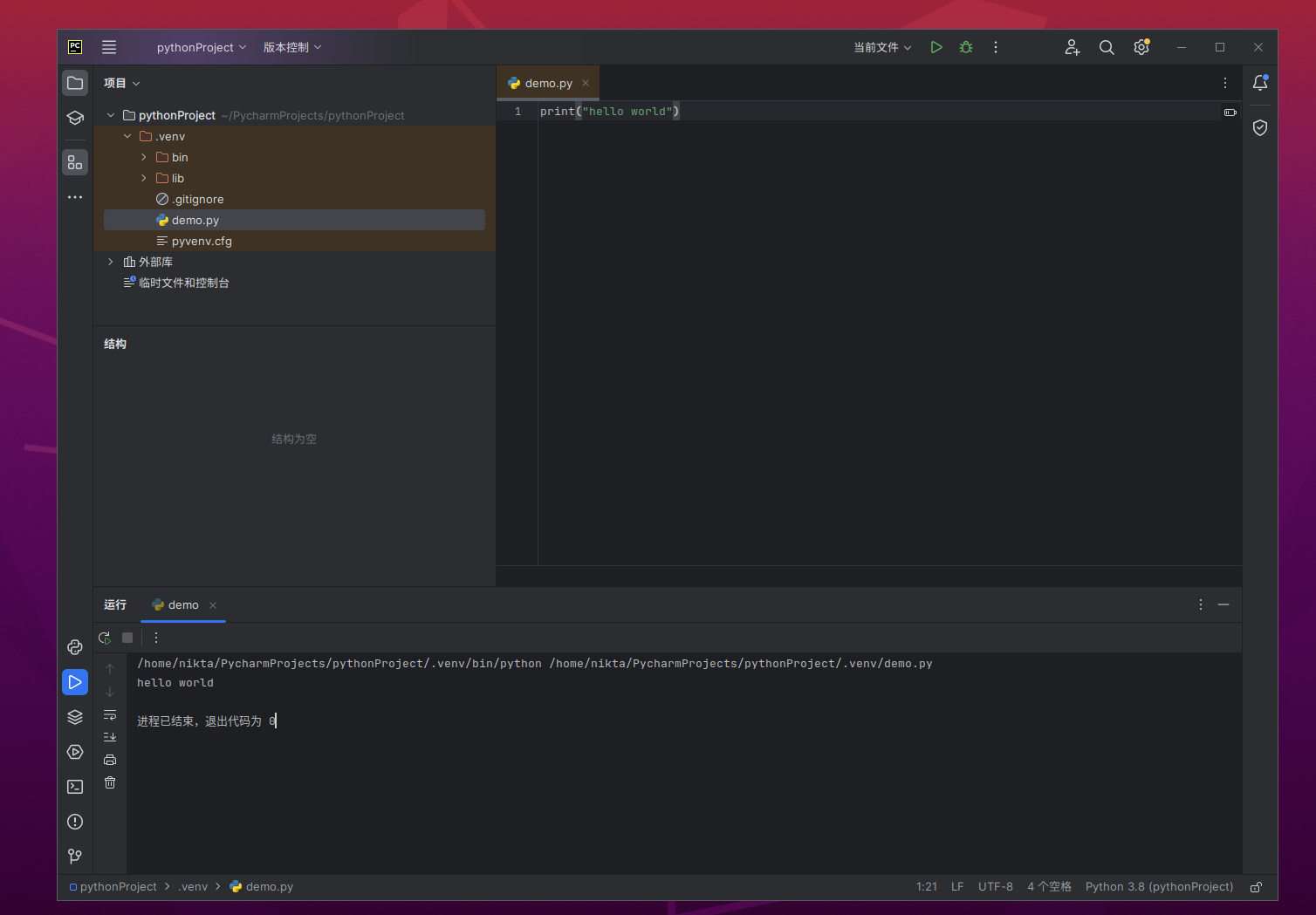
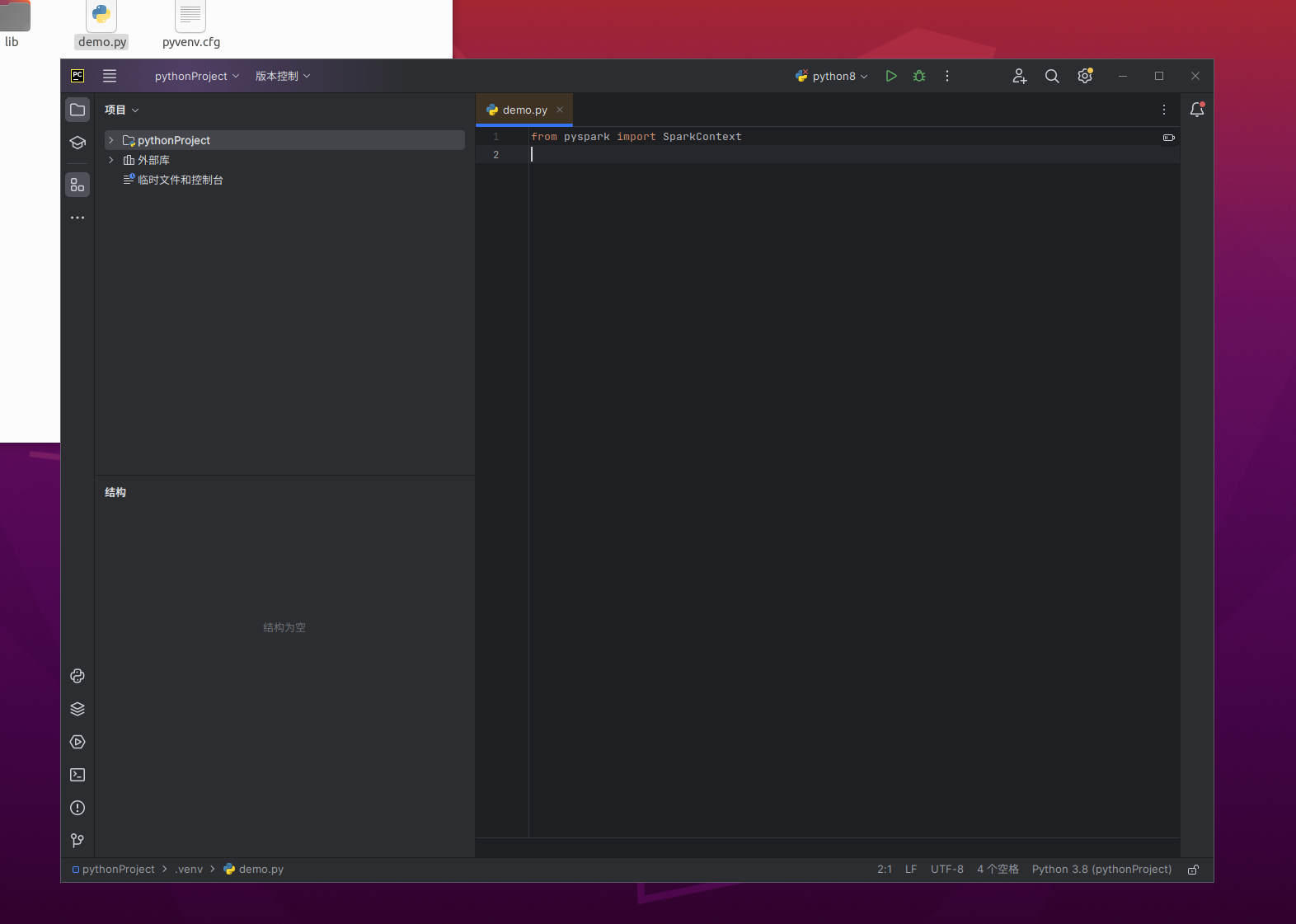
测试pycharm
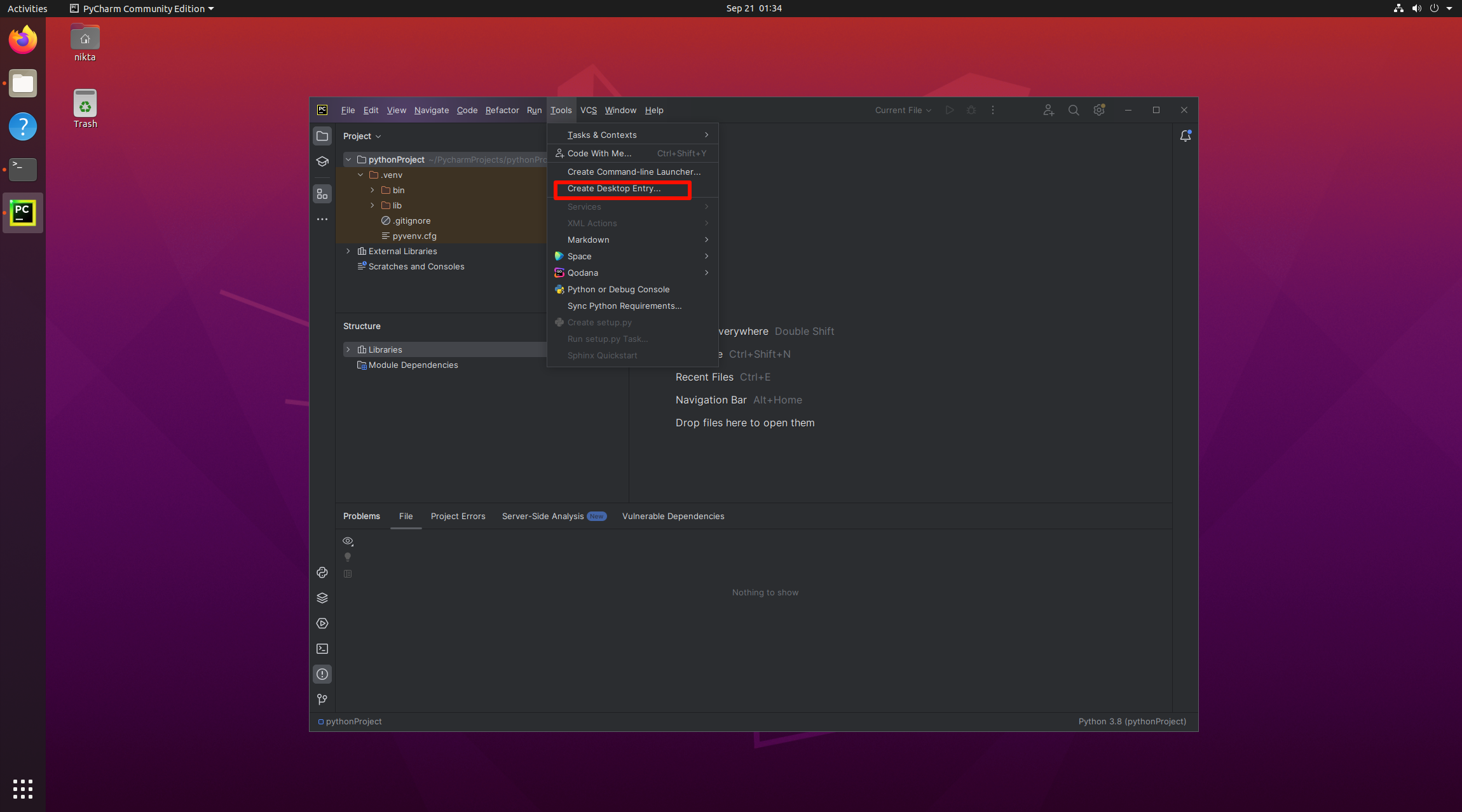
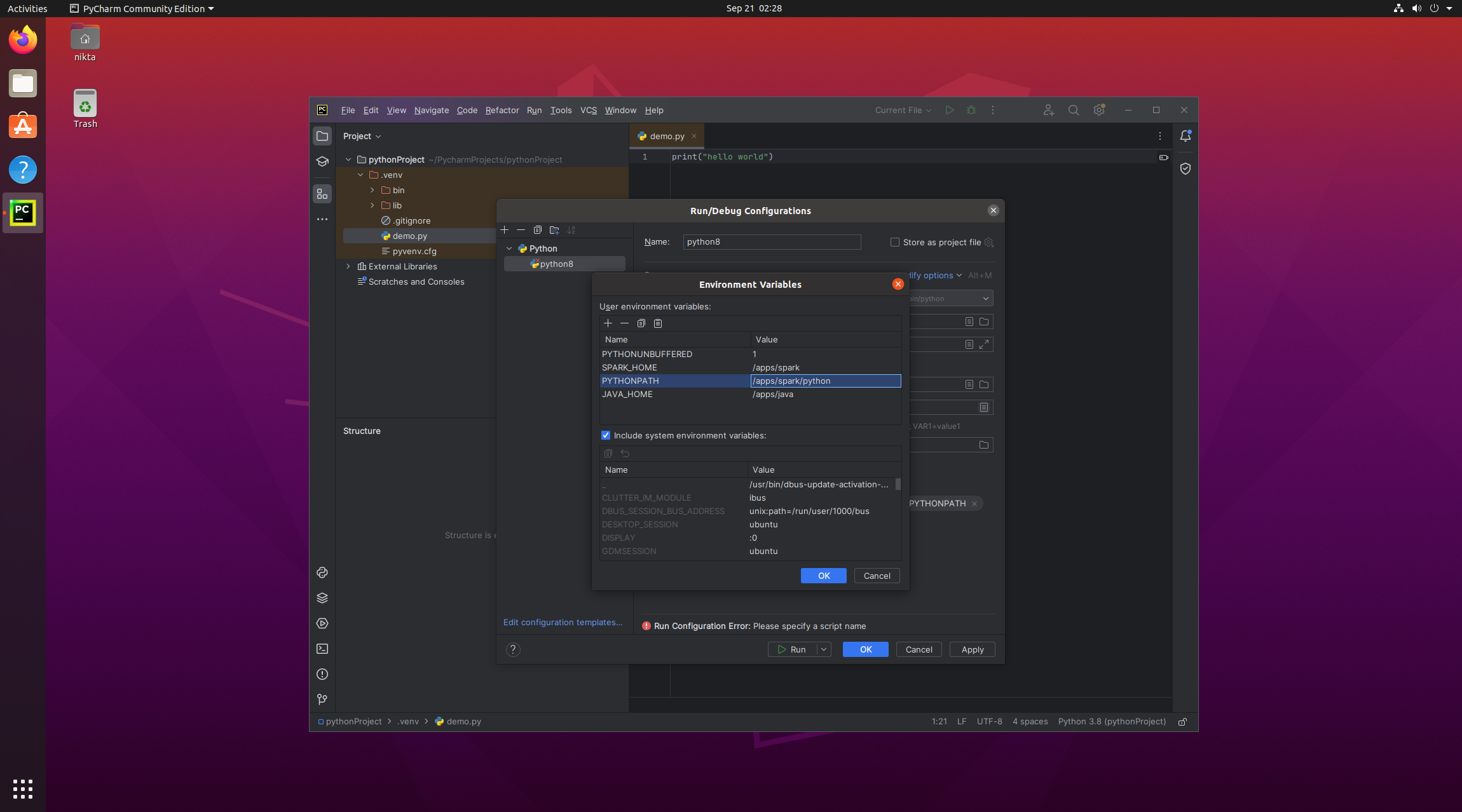
配置环境变量
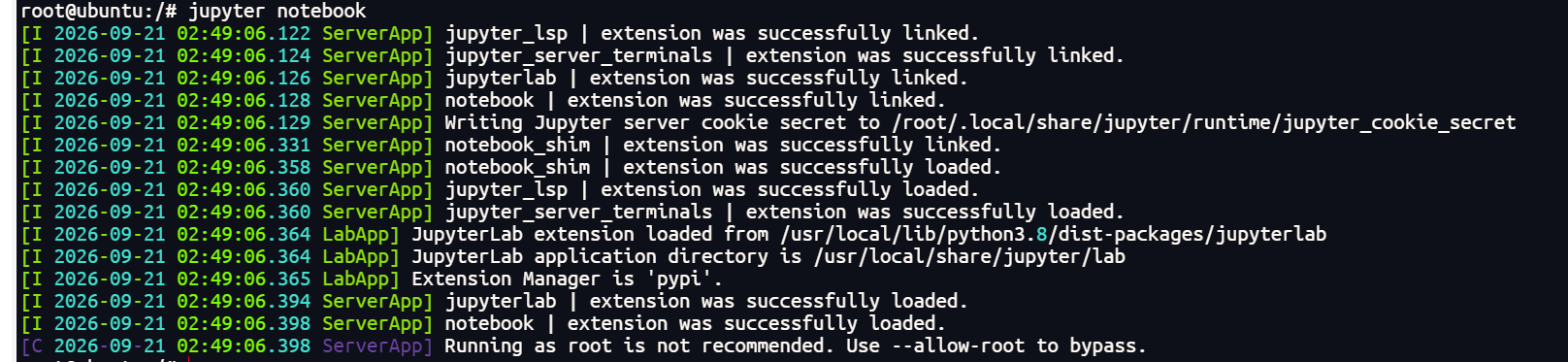
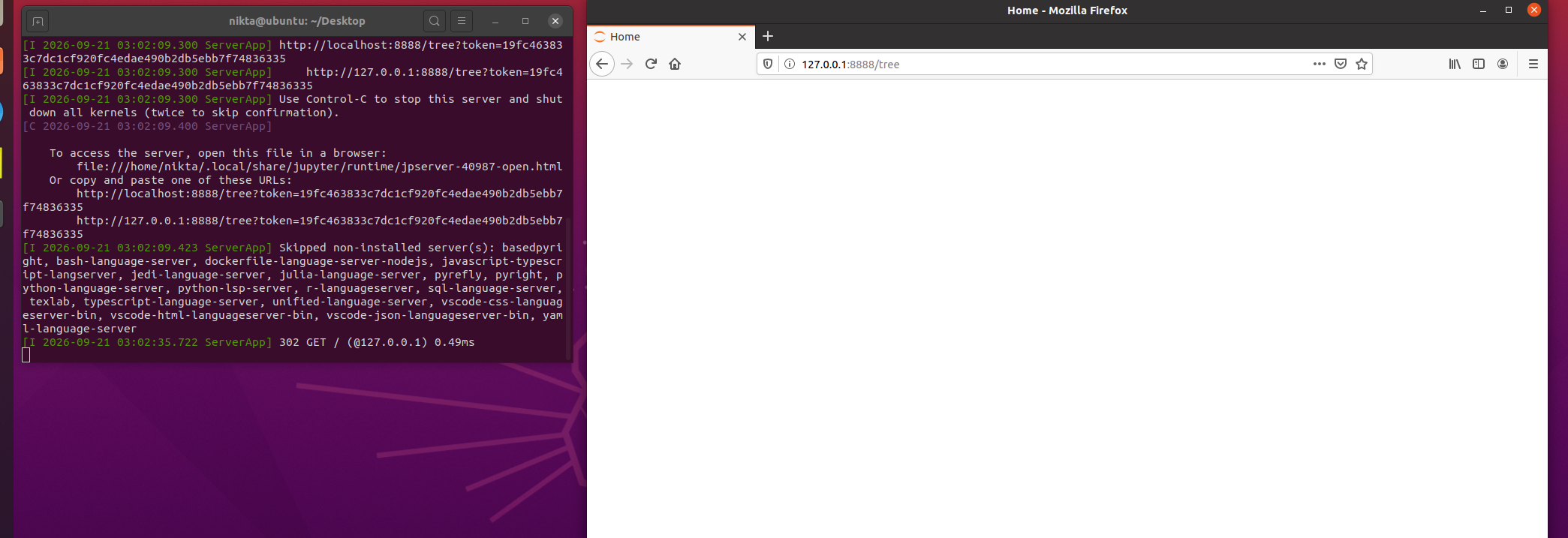
1.7 Jupyter botebook安装配置(选做)
下载jupyter
1 | pip3 install jupyter -i https://pypi.tuna.tsinghua.edu.cn/simple |
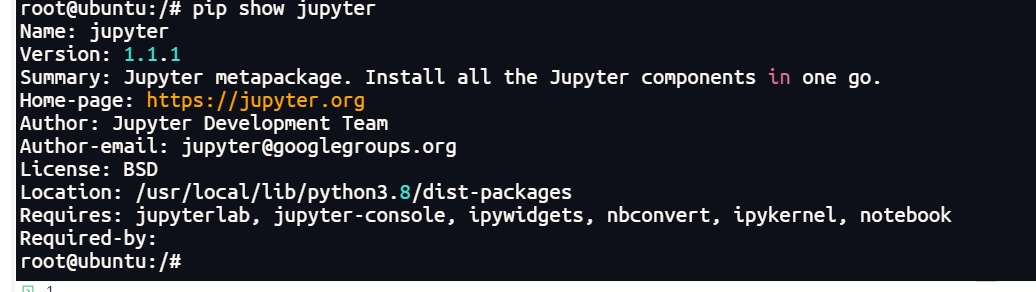
1 | pip show jupyter |
更改环境变量
1 | #jupyter |
启动
1 | #用普通用户启动 |
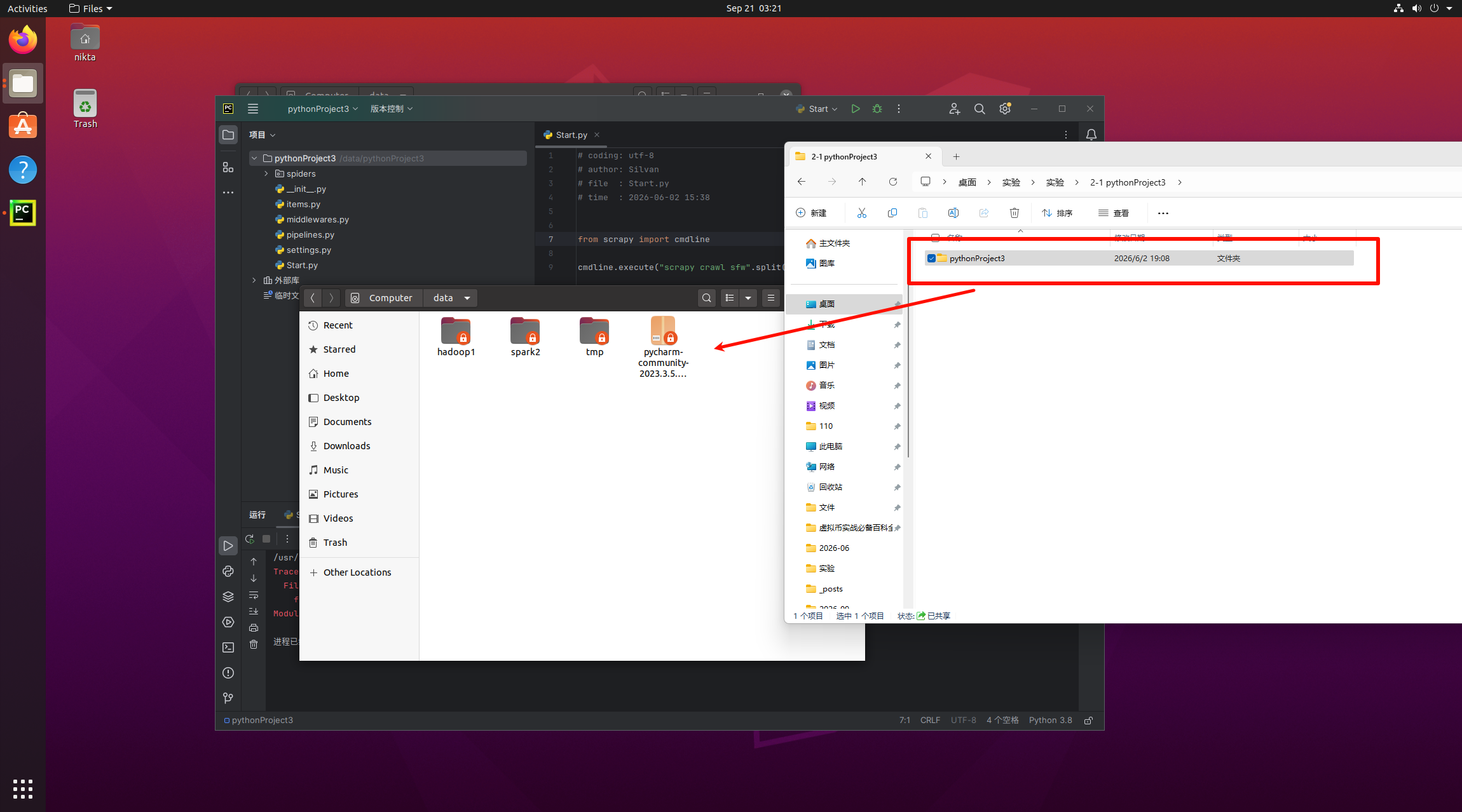
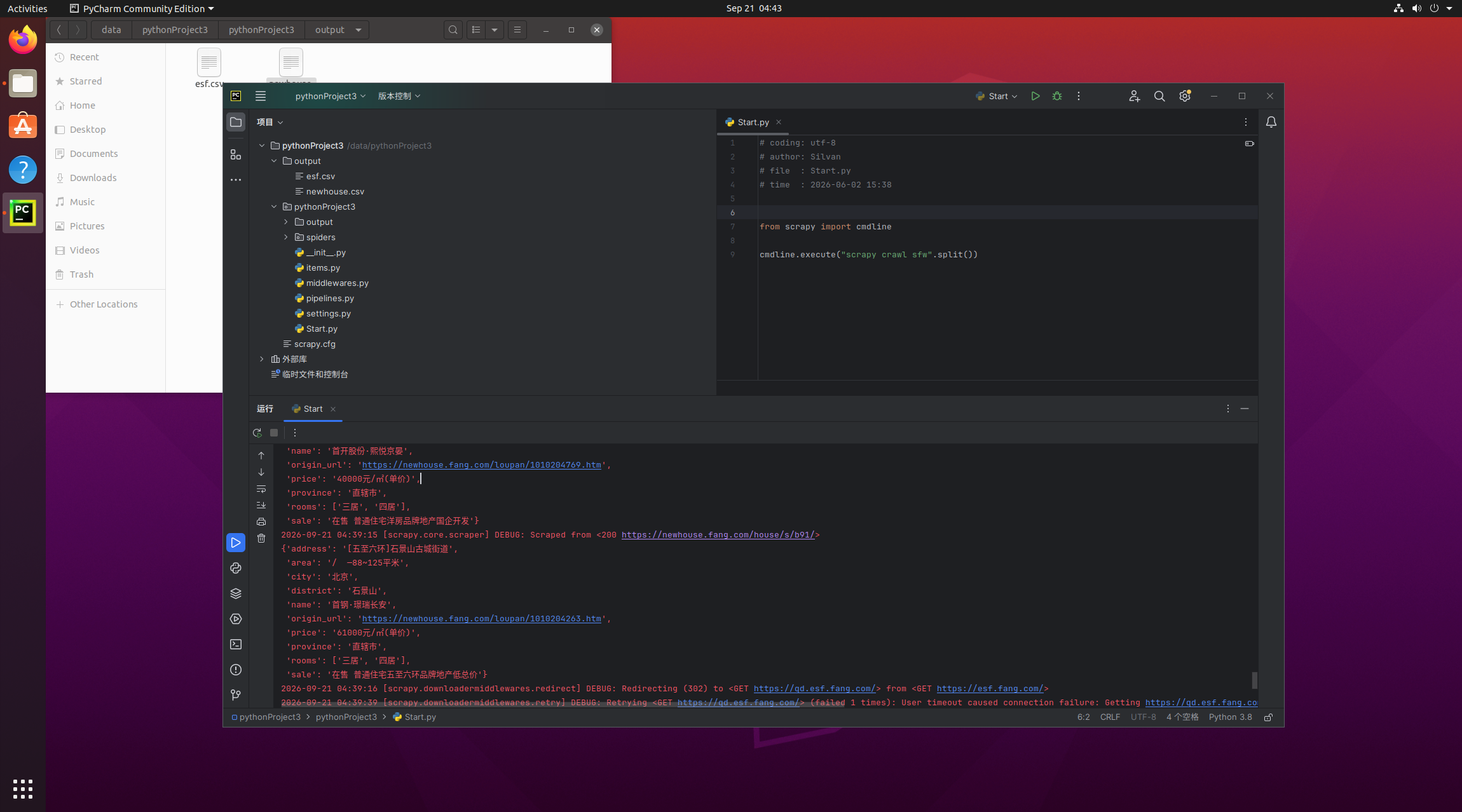
2.1 爬取全国各省市房价数据
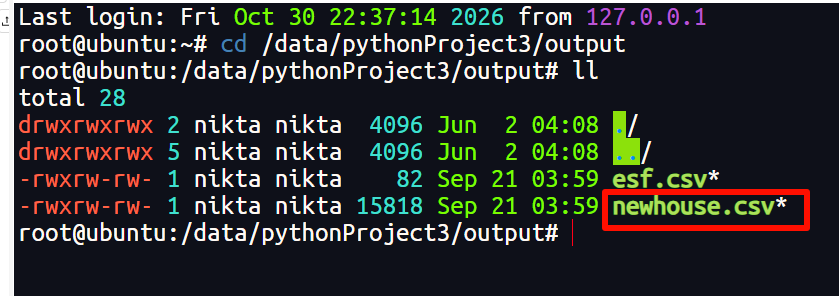
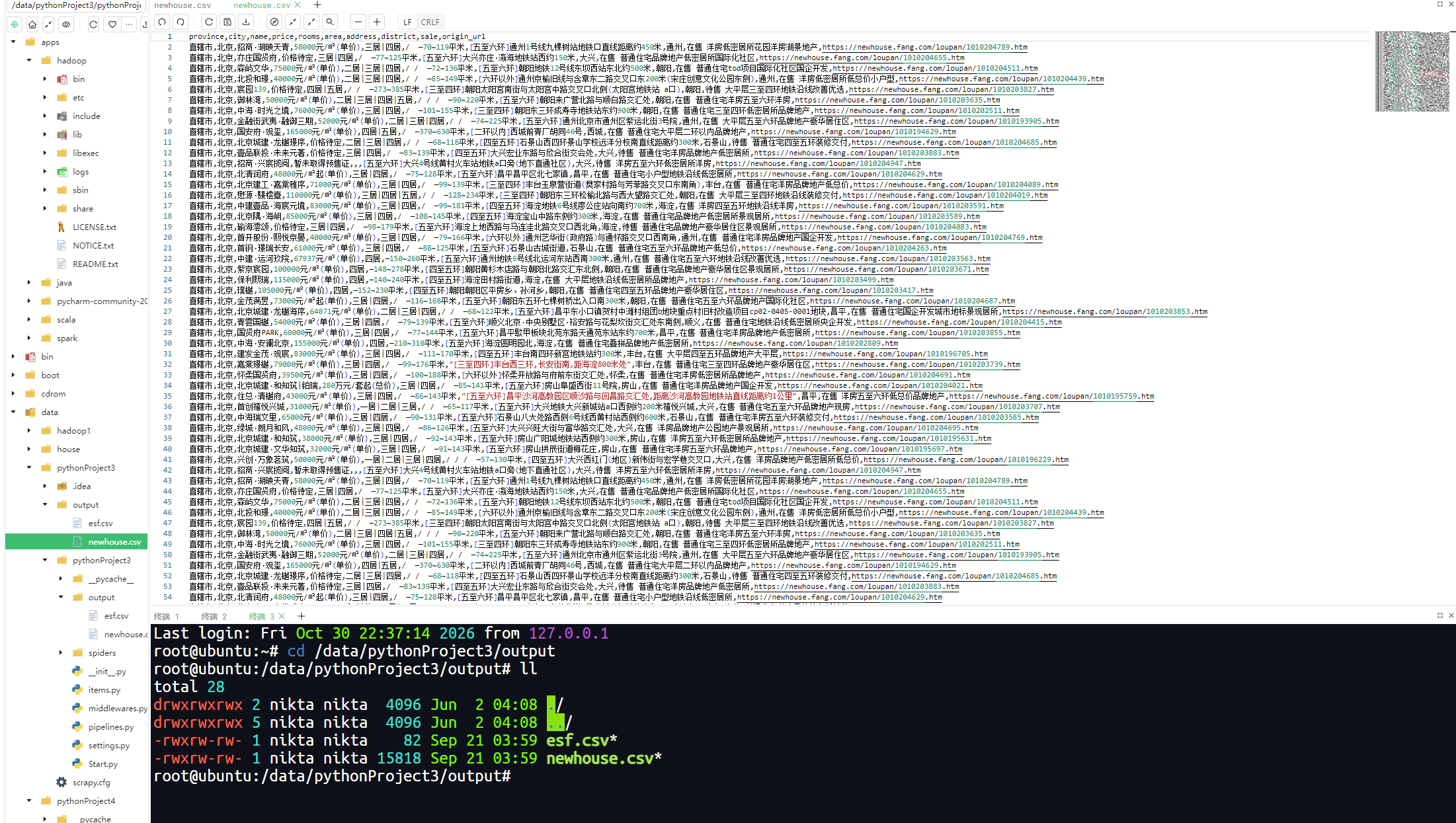
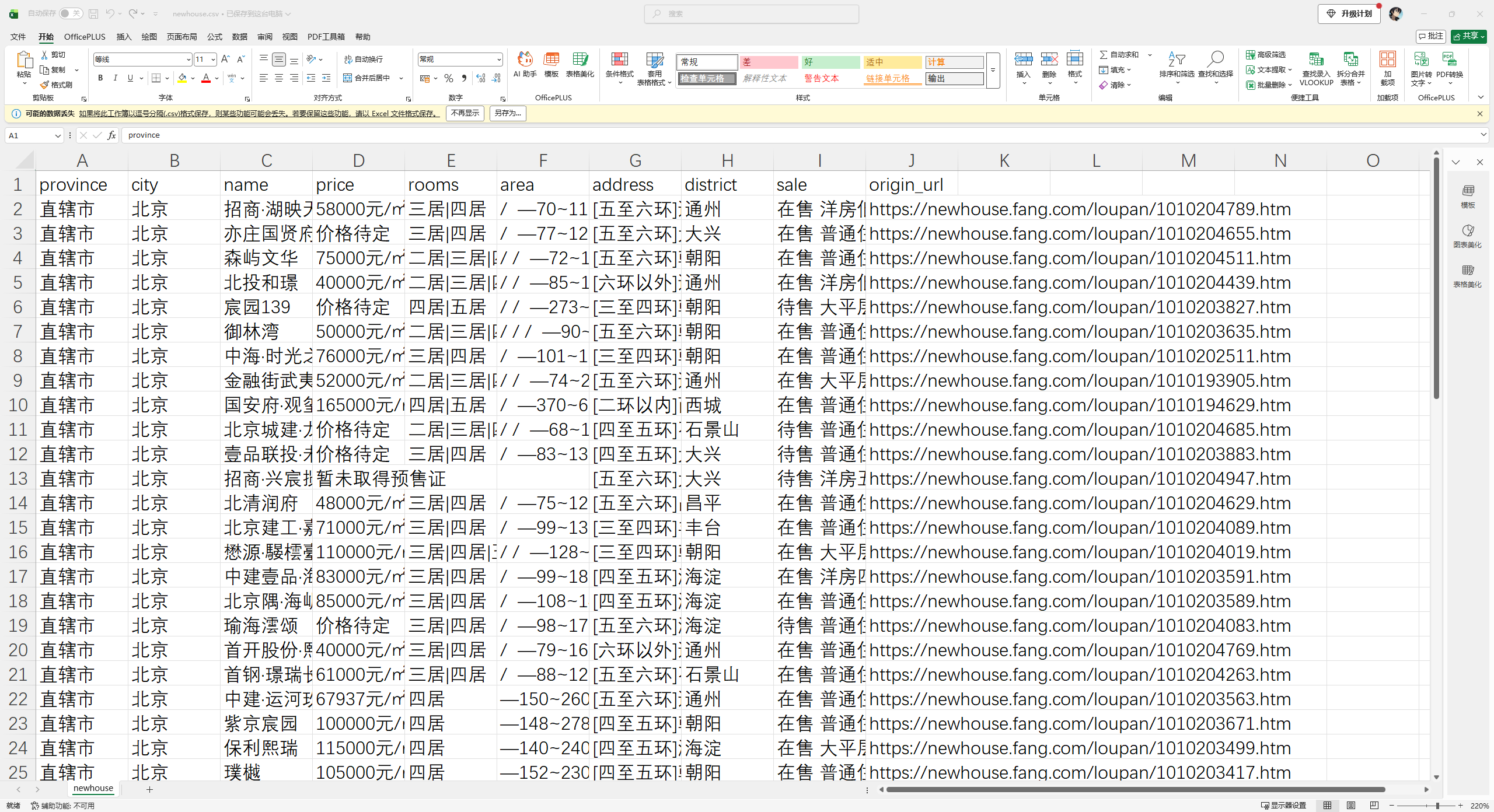
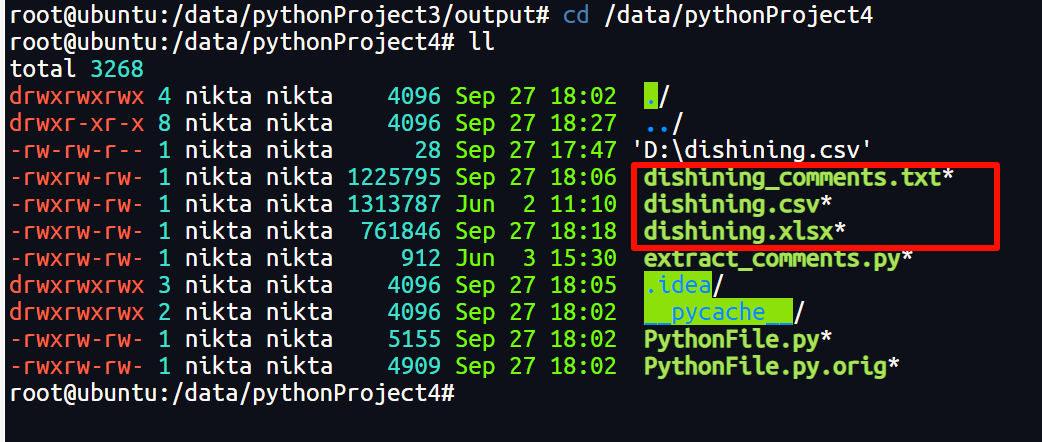
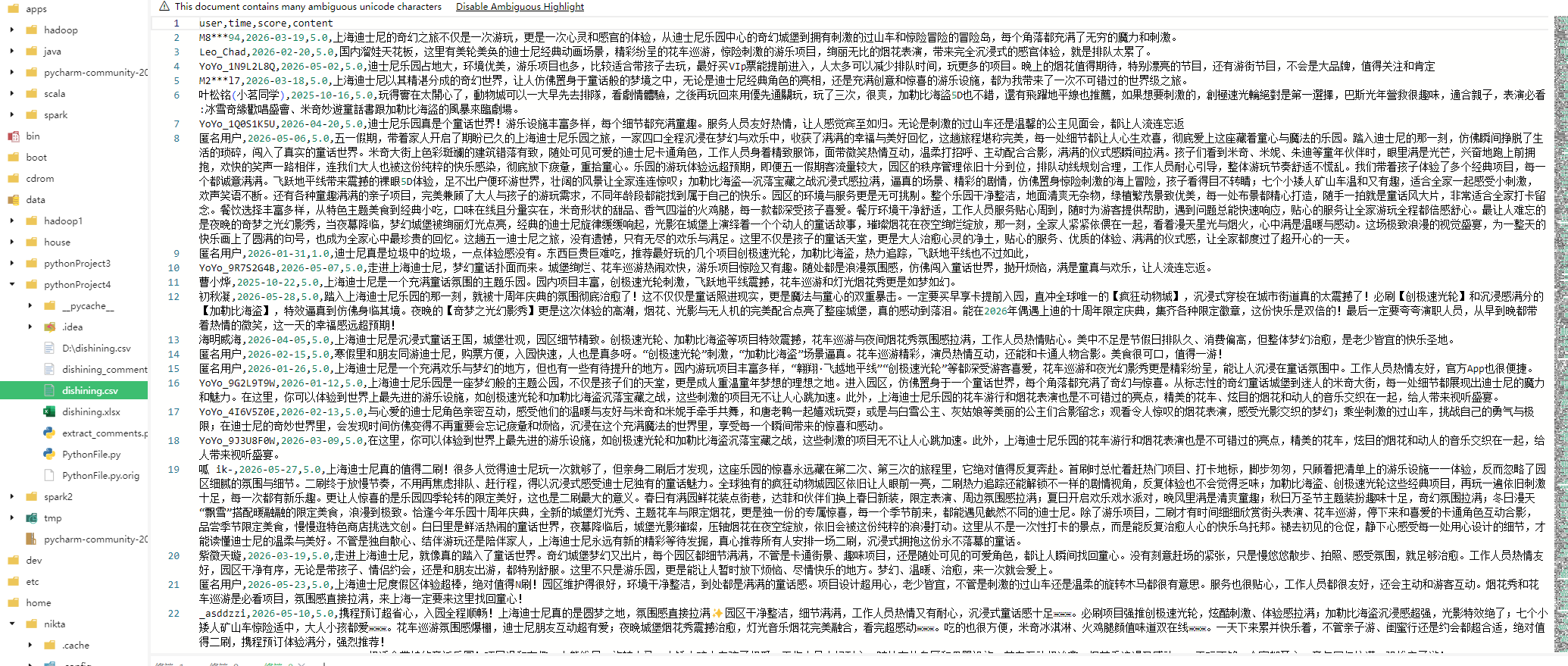
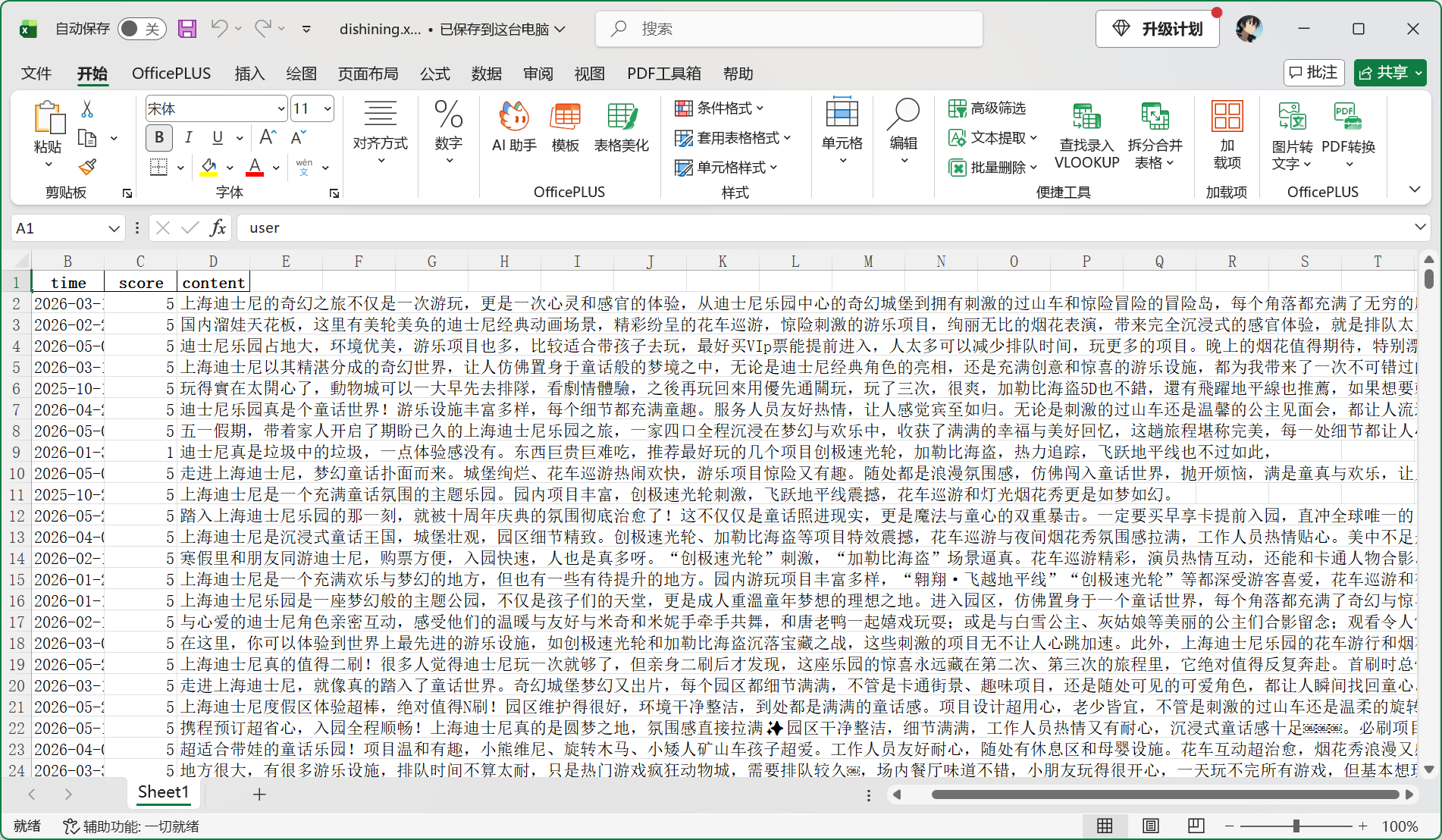
2-2爬取评论
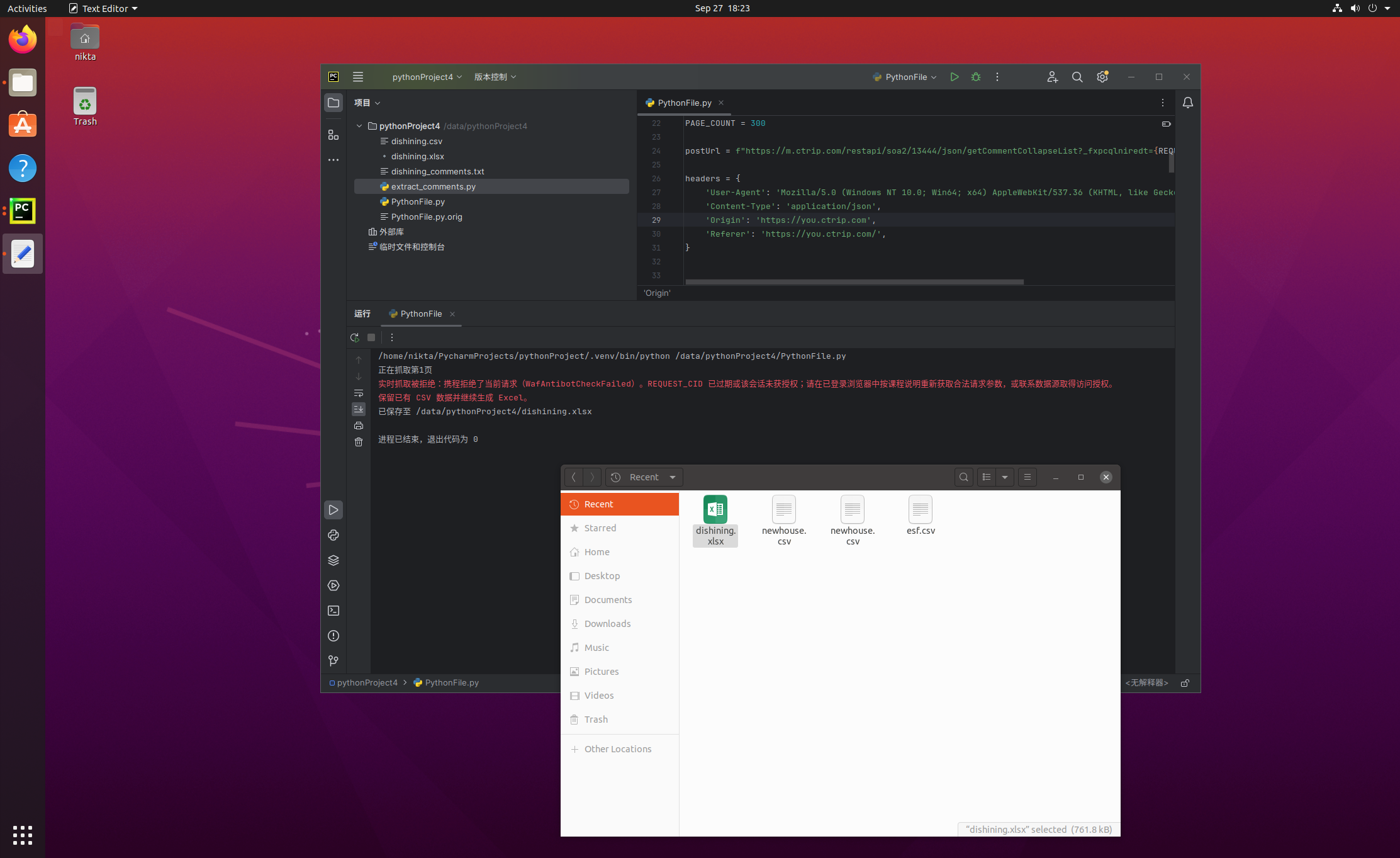
C:\Users\110\Downloads\192.168.1.141\202609280922